
Web App
The Web App
MIDI BLASTER is fully customizable via its Web App for use with Chrome/Microsoft Edge on Mac/PC.
Connecting
After connecting your MIDI BLASTER to your desktop, open up the Web App and press "Connect". Choose MIDI BLASTER from the dropdown list. If the connection is successful, the "Connect" button will read "Ready ✨".
Customizing
First, ensure that the preset you'd like the changes to be made to is selected on the left.
From there, you can select the sensor and/or button you'd like to customize by clicking on it on the right, then make the changes in the container underneath.
Once you're happy with your preset, simply press "Apply" and the changes will be made to the preset selected.
You can then move on to other presets, or close the application.
Sensor Functions
There are various customizable functions pertaining to the sensors:
CC/MPE
Toggle between CC or MPE mode. Changing this affects all sensors within the preset.
Channel
Select the MIDI channel for the sensor selected (1-16).
CC Value
Select the MIDI CC Value for the sensor selected (0 - 127). Please see documentation for which value will control what effect on the software/hardware you are using.
Note
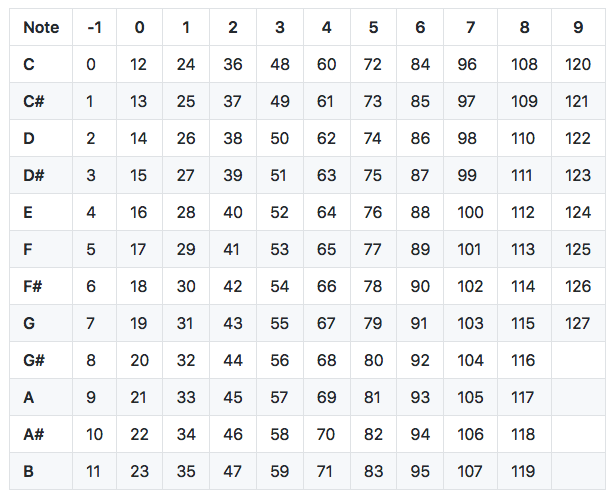
Available only when MPE mode is selected. Sets the MIDI note for the sensor selected (0 - 127). Please see MIDI number -> note chart.
LED - Multi Fade
On by default. The LED hooked to the sensor selected will fade between two randomly selected colors dependent on proximity. Resets between each reading.
LED - Brightness
Sets the brightness of the LED hooked to the sensor selected.
LED - Color
Available only when Multi Fade is off. Select the color for the LED hooked to the sensor selected. Fades in and out dependent on proximity.
ON/OFF
Toggles the sensor/LED selected on/off.
Range
Sets the top and bottom values of the sensor selected (in mm). Max: 500 mm. Distance between top and bottom must be at least 100 mm. The larger the distance between top and bottom the smoother the reading of the sensors.
Button Functions
There are two customizable functions pertaining to the sensors:
Hold
Sets the button selected as the "Hold" button. Freezes MIDI BLASTERs sensors, LEDs, and MIDI data.
Preset Cycling
Sets the button selected as the "Preset Cycling" button. Cycle between presets saved.
Presets
MIDI BLASTER allows customization of three presets on release, with more coming in future software updates.